Getting Started
-
To purchase a license to use TeachingLaw.com, click the "Buy License" button under the description of the product you want to purchase on the home page.
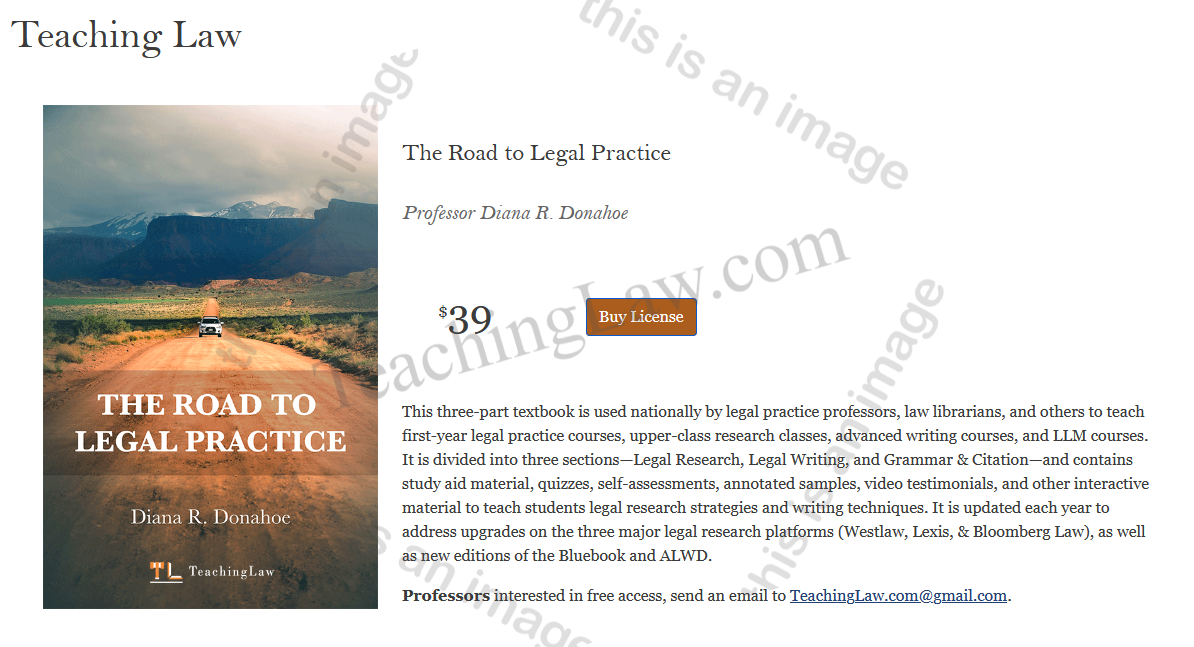
This will add the book to your shopping cart and redirect you to the Cart page.
-
Review the title in your cart to ensure you've got the right book license.
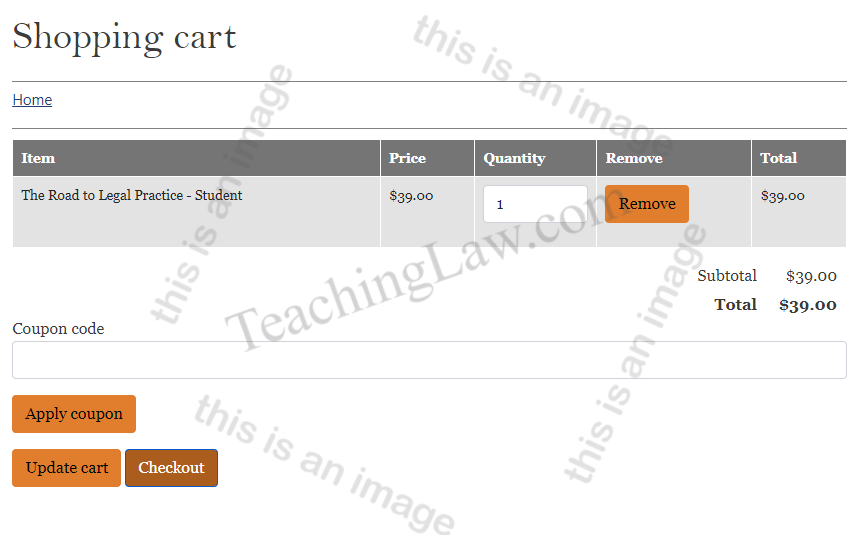
If your professor has given you a promotional code, you can enter it on the cart page and click "Update Cart".
Click "Checkout" to proceed.
-
If you are not already logged in, you will be prompted to log in or register a new account.
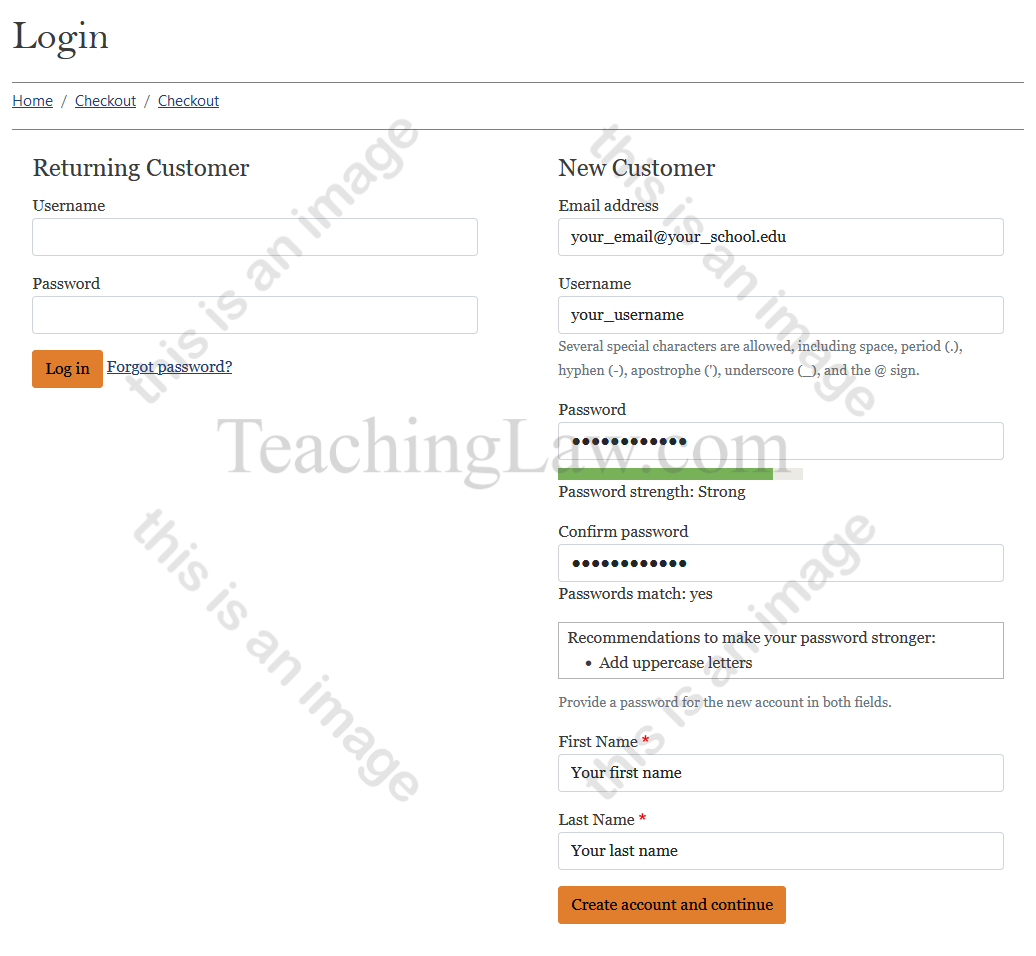
If this is your first time visiting Teaching Law, enter your email and name, along with a username and password in the New Customer form on the right. Remember your username and password, you will use these to log in and access the book content in the future.
When you've entered all your information, click Create account and continue to proceed.
-
There will be a quick review letting you know that Paypal will be used to process transactions. You do not need to create a Paypal account to complete the purchase, but credit cards will be processed by Paypal.
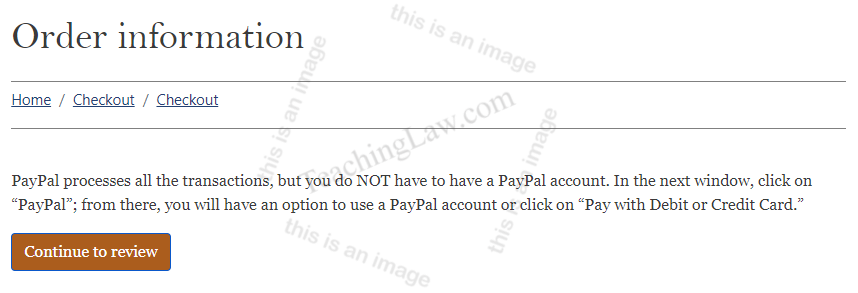
Click Continue to Review to proceed.
-
Next you can review your order before continuing to Paypal.
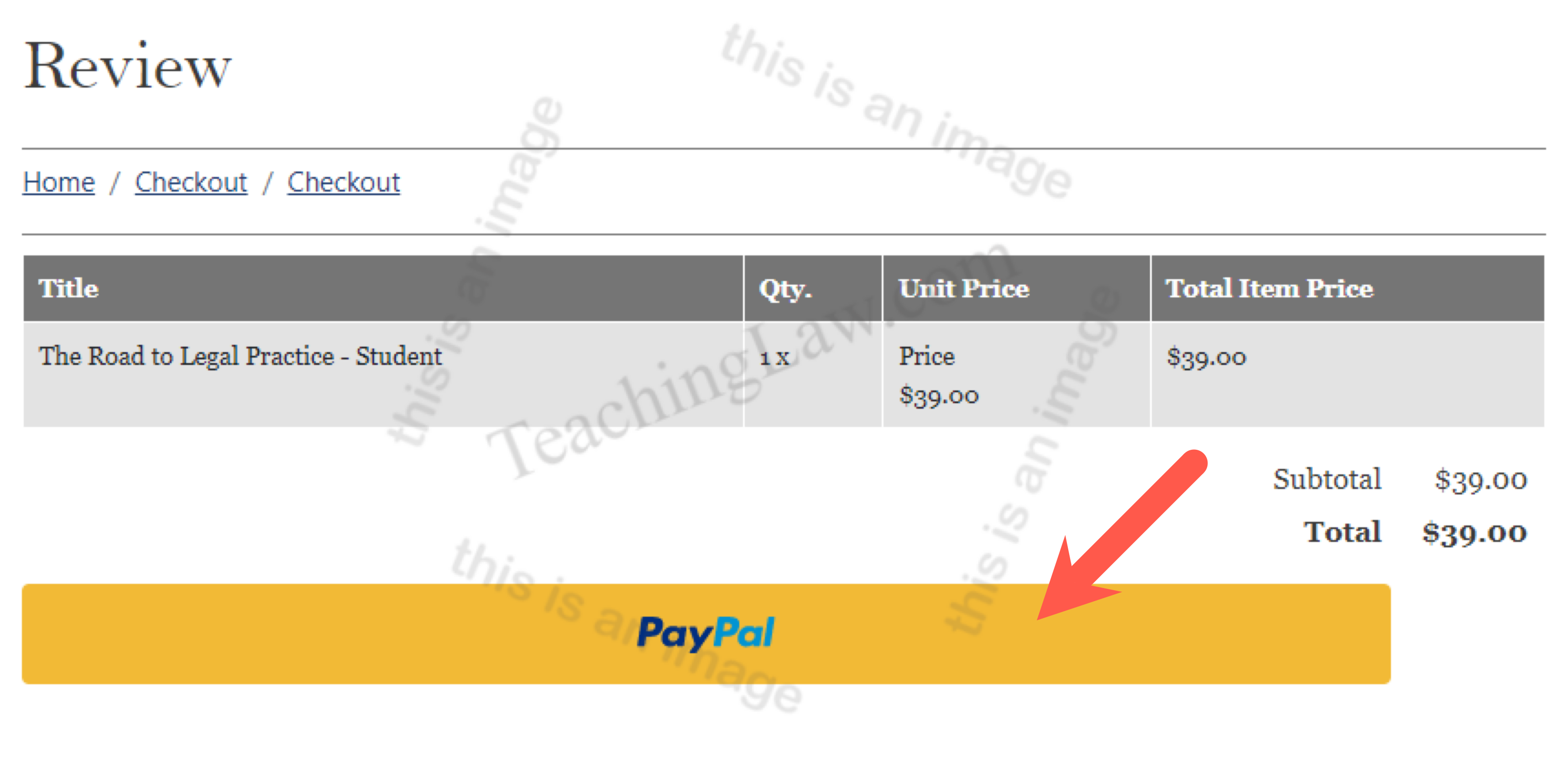
Press the large yellow PayPal proceed to Paypal. It will open in a new pop-up window, while your original window stays open.
-
If you do have a Paypal account, you can log in inside the Paypal window.
To avoid a Paypal login, click the Pay with Debit or Credit Card button.
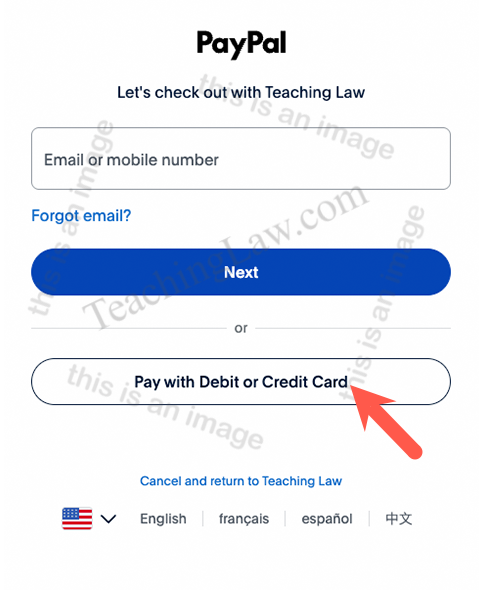
You will need to enter an email address on the next screen (this does not create a PayPal account).
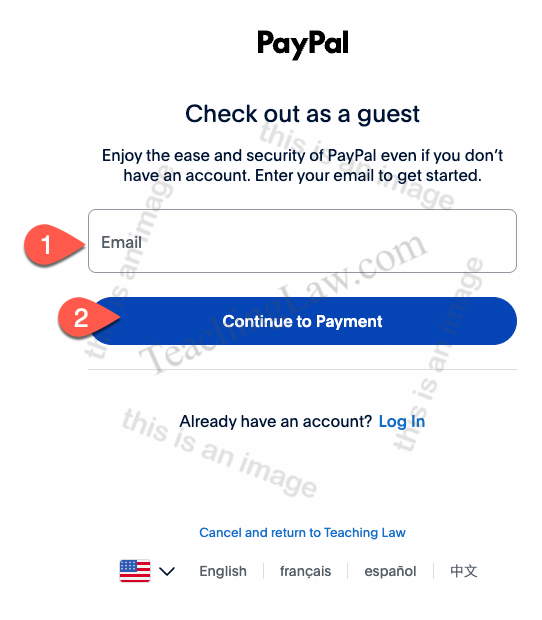
-
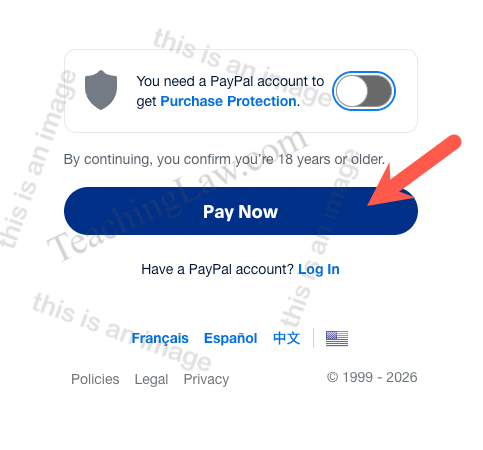
Enter your credit card information on the Paypal guest checkout screen. If you are proceeding without a PayPal account, you will need to uncheck the Create my PayPal account for Purchase Protection on eligible purchases toggle if you wish to proceed without creating an account.
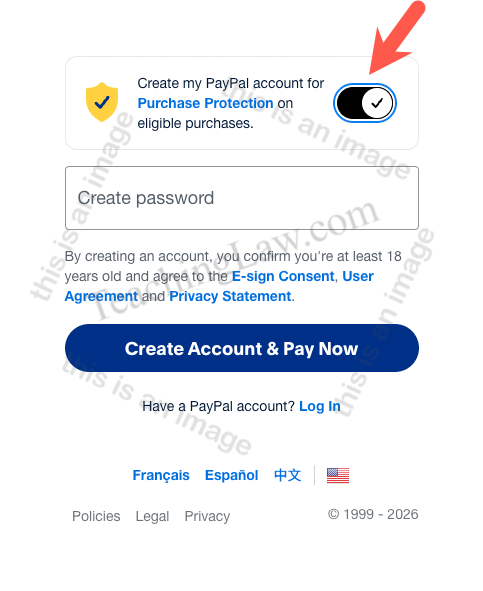
If you have deselected the option, it will now read as You need a PayPal account to get Purchase Protection and the proceed button will read Pay Now.
-
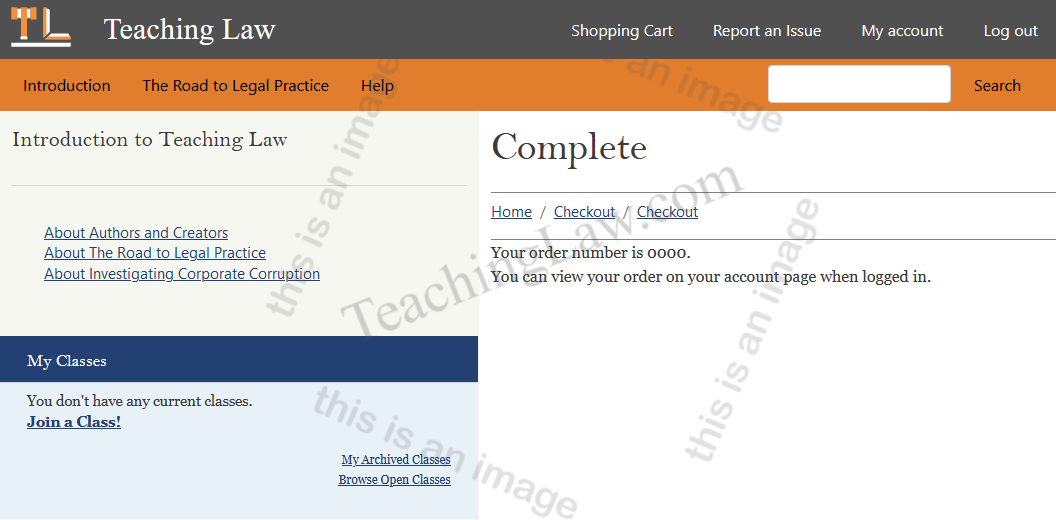
Your original window will redirect to your Order Confirmation. You should now have a link to your book next to Introduction in the top navigation.